Monday, February 2, 2015

RTP billing

The billing of interval-related data (profiles) is called real time pricing billing (RTP billing). RTP billing allows you to define rates and prices freely across intervals and therefore enables you to structure contracts that are required in a deregulated energy market more freely.
RTP billing is based on rate models that evaluate energy requirements over a period of time. Consumption (and demand if necessary) are measured for each interval (for example 15/30/60 minutes) or for each rate period (for example peak and off-peak). The price for kWh of consumption, or kW/kWA demand is determined for every interval. This means the price may vary for every interval.
You can use RTP billing to calculate time-of-use pricing models and RTP models. You can define prices in advance or adjust prices to the spot price defined by the energy market.
Time-of-use pricing models are time-based. This means that prices are determined based on time groups.
RTP models are quantity-based. This means that prices are determined based on agreed reference quantities.

In the RTP billing, an important aspect is data storage which is done through profile management. Unlike standard billing where the meter readings are done once in a month/2 months or quarter, in RTP billing the consumption values are updated every 15/30 or 60 minutes. So we need to store and maintain this data differently, for which sap has provided profiles management.
Let's start by creating profile type.


After creating profile type, we need to set up interval length. We can assign more than one interval length to the profile type.


For profile type 89 that we created, we have assigned 15, 30 and 60 minutes intervals.


Next step is to create profile version. This is important because after creating profiles and adding values to it, if any change has been made, then historical values are stored as versions. For example we have got 60 minutes interval values for consumption as 5 KWH. Now if the data has been corrected for an interval as 7 KWH, there is a version created automatically, enabling us to know which values were created from original which values.


And that's why we select "always create" option so the system would always create a version whenever there is change made to the values.

Using transaction eedm06, we now create profile header. As per below, profile 171 has been created.

Once the values for 60 minutes intervals are downloaded, the profile looks like this. We have selected this profile for 30 days period which means that for 30 days, every 60 minutes data is stored in this profile.
Now let's change a couple of values manually and see if profile versions are created. In this case, we changed values for 2 intervals. These values 10 and 15 are highlighted when we select version from the top menu.

This completes the data storage process using profiles.

Next let's look at how complex billing is performed.

In regular billing, we maintain certain values at the device (registers) and devices are attached to the installation and thus those values are used for billing. But for RTP billing, that is not possible because we have to maintain values in profiles. That's why RTP interface has been created.

The RTP interface is a data object that links the Energy Data Management (IS-U-EDM) and Contract Billing (IS-U-BI) components.

The RTP interface enables us to use the profiles maintained in IS-U-EDM in IS-U billing. In order to this, we allocate the RTP interface to the rate used for billing an interval meter.

In the RTP interface we can execute billing-relevant processing steps carried out based on profiles. For example, we can process billing agreements for periods as small as 15/30/60 minutes. The results from such processing steps are then transferred to the rate steps in the rate. Billing lines can then be created from the rate steps.

So in order to bill based on time intervals, let's start setting up day group and day type.


And now let's set up TOU(Time of USE) types and groups.


And created On Peak, Mid Peak and Off peak TOU types.


And defined time period for each of them. For example, on peak time is set as 8 am to 6 pm.
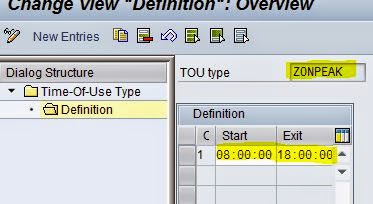

Next, let's create TOU group and assign all 3 TOU types that we created earlier to this group.


Next step is to define RTP component.
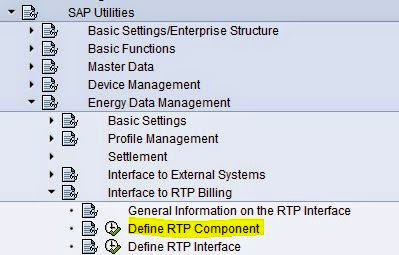


And assign TOU group that we created to this RTP component.


And activate this component by clicking the "generate component code" icon in the top menu.


Next step is to define RTP interface.


Now we need to update information on all 3 tabs showing on the top menu. Below is the details we need to update on HDR tab.


Now the result parameter tab.


And on the RTP component tab


And once RTP interface is defined, then enter it while creating rate using transaction EA30


Sunday, January 11, 2015

Travis Thomson page

The contents on this page has been contributed by my colleague and dear friend Travis Thomson, based on his experience in working with SAP ISU billing situations. Thank you Travis!

Things that we need to check when there is CMO (Change meter order) on the account

When there is a CMO, a 21 install in read MUST be the NEXT DAY in SAP after the 22 removal out read. If the device removal is June 4th in SAP, then the new install must be June 5th in SAP. An exception around this is if the 22 out read also happens to be an 03 move out. If it is an 03 move out, then the 21 install more than 1 day later is acceptable provided it is also an 06 move in.

In the case where there is a 22 removal, and 21 install with a gap of more than 1 day (in most cases I have seen it be just a couple weeks or couple months) it must first be determined whether or not the service should continue in that customer's name. Once determined, there are two routes:

A.) Have the CMO removed completely from SAP and re-entered with the correct dates according to field and account notes

B.) If the agent has clearance to do so, simply make the CMO 22 date a move out, ending that contract for the customer and make the CMO 21 a move in, which will start a new contract for that customer. This can be done in the IC Web "front end" (CRM)in the end contracts and moves/transfer screens, and is very straight forward. Make a special note to waive the start up fee if going this route, as the customer will be charged incorrectly since it is technically not a brand new service, just a new contract number. This is the faster route which is likely more suitable for urgent escalations that require immediate resolution. I personally have not ever seen this error occur without a CMO being involved.


While processing customer accounts for TOU billing, we regularly send BQ requests to obtain valid and billable readings. Some of the scenarios that may not allow BQ requests to go through successfully are listed below.

Things to we need to check if BQ requests fail

For sent BQ requests that do not show in a BQ table there are several unique variables that come into play and in my experience, 99% of the time have to do with make up of the MROs. I will list all the common examples I have encountered to the best of my memory that causes this problem.

A.) BQ for a CMO (22) will not send -- This is because the CMO 22 is not a move out, or there are no periodic MROs listed after it. If the CMO 22 is a service termination, creating a periodic MRO after it will allow BQ to send, but will not fulfill it properly. In this case, a move out date must be applied to the CMO 22 date and then send BQ (end the contract on the same date as meter removal date). It should fulfill fine, if not data repair is needed, which is a separate issue.

B.) There are multiple MROs (multiple allocations) for one period. For example 09, 11, 16, 13, 18, etc, and 01 exists for a scheduled MR date. -- This is because in addition to periodic billing period MRO, any other allocation is there, BQ will not request and if it does, there is no status or response. It must be determined which MRO is required in importance and the other should be removed using EL37, or nullified in EL29 or EL28.

C.) There are multiple move outs and move ins on the same installation. SAP will request BQ for the newer periods, but not some of the older ones -- In this case, when requesting the BQ, change your latest date to the last date that is not sending. For example, if you are requesting from January 1st 2014 to January 1st 2015, but BQ is only sending from April 1st 2014 and skipping the earlier months, simply make your latest date April 1st when sending BQR (using transaction ZBQR) and it should send.

D.) All the dates for the MROs are there and OK, with no duplicates or visible anomalies but it still won't send -- It is very likely that this is some kind of deeper defect or there are billing/invoicing documents you have not accounted for which are blocking the BQR. In cases like this, you have not actually created the MROs, only checked them and tried to send a BQR. Reverse the documents and try again.

If it is not the documents, it may be the device install which is prompted by a clarification case typically asking for some price change MROs missing. (normally 30-04-2012)

If it is not the clarification case, it may still have to do with devices. If your CMO dates are incorrect, it will cause an error in requesting. The table may request only some dates and not others, so if there are multiple CMOs on the installation (and some a even very close together) make sure to check the 21 in and 22 out dates. You cannot have a 22 out after a 21 in unless it is 2 days later in SAP. For example, if there is a 22 meter out on May 1st, and new meter installed 21 is on May 2nd, the next plausible date for a 22 meter out has to be May 4th or later.

To summarize, when BQ request does not go through, it is mostly due to very general and very variable MRO situations where something is missing, there are two many of something, a date was requested too early (before earliest device) or too late (in the future and we haven't got there yet like requesting May 2015)

Saturday, December 27, 2014

SAP ISU Billing

Below  are some important basic terminology for SAP ISU Billing and it needs to be configured first.

Billing schema
Rate
Facts
Rate  facts group
Price key
Operand
Rate category
Rate  type
Rate determination
Master data creation (BMD + TMD )


Business master data.

1) Business partner: A person or legal entity with whom the organization has business relationship. It can be a customer, a vendor, an employee. 
Transaction code: FPP1

2) Contract Account: Customer's account that has information about billing method, payment method,collection method and more.
Transaction code: CAA1

3) Contract: It is an agreement between business partner and the utility company.
Transaction code: ES30 (Contract is automatically created when customer is moved in to a premise)


Technical Master data:

1) Connection Object: It's a building, piece of property or other facility that is connected to the supply grid.
Transaction code: ES55

2) Premise: It is an enclosed spatial unit that is supplied with energy such as an apartment or a factory.
Transaction code: ES60

3) Device location: It provides the physical location of device (meter)
Transaction code: ES65

4) Installation: It stores billing properties for one or more devices at the premise.
Transaction code: ES30


Billing configuration:
1) Billing schema: Structure that defines the order in which variant programs for rates to be billed must be executed.
Transaction code: EA35


2) Billing class: It classifies installation for billing (example: residential, non-residential, non metered etc). Change in billing class also requires change in rate category. Final billing is not necessary upon changes. It can be valid for several rate categories. It serves the purpose of validation and statistical criterion. It controls the determination of the MRU in in the regional structure.


3) Variant program: It is a functional module in rates or schemas that contains a billing rule.

For example, one of the billing rule is consumption quantity(KWH)Xprice ($)= Total charge amount ($) is accomplished by variant program QUANTI01


4) Rate: It stores billing rules which are executed during billing run. It consists of steps and values of how to calculate billing quantity and amount. Each step is executed with variant program. Values of input and output parameters of rate steps (quantity, price, factor, amount etc) are determined historically at run time.


5) Facts: They are concrete values (such as 100 KW) or keys (for prices etc) that are allocated to operands and are valid for a specific period. According to the level on which facts are allocated, they can refer to installation facts, rate category facts or rate facts.
Installation facts have precedence over rate category facts and rate category facts have precedence over rate facts.


6) Rate fact group: Grouping of individual facts that are allocated to a rate. Several rate fact groups can be allocated to one rate. Rate fact groups enable you to use the same rate
but apply different operand values.
Example: Different prices for Victoria North & Victoria South for SOLARIS & UNITED respectively

7) Price key:

8) Operand: Individually determined symbolic name for the assigned values that are used as input/output parameters in variant programs. One or more operands are allocated to an operand category.
Transaction code: EA50

9) Rate Category: It is classification of an installation for billing purposes. It contains one valid billing schema. It determines which outsorting billing checks occur during billing. In conjunction with rate type, it determines rates to be applied during rate determination process.
Transaction code: EA53

10) Rate type: It is classification of register, flat rate or reference value for billing purposes. Rate type is commonly allocated to register to classify the register type such as on peak, off peak, mid peak etc. It could also be allocated to device or installation level for use as a classification of flat rate or be a classification of reference value. In conjunction with rate category, it determines rates to be applied during rate determination.

11) Rate determination: In conjunction with rate category, rate type is used to determine the rate.
Transaction code: EA87


Billing errors

You have sent BQ request using transaction ZBQR but it is not showing up in BQ table.

Solution:
One of the issue could be MROs that you created are not in order. Check if the MROS you created are within the current date period. Example, today is Demember 10, 2014 and one of the MROs you created is for January 2015. If this is so, remove January MRO and send BQ request again.

Another issue can be that the device date and contract date does not match. For example device date is January 2014 and contract start date is December 2013. This means that there was no device installed at this premise in December 2013 when customer was moved in to this premise. We cannot bill the account without having a meter installed. In this situation, investigate and check records and update the device installation date or contract start date in such a way that the contract start date is on or after the device installation date.

Another issue can be that there is no USDP ID assigned to the account. So check in ES32, under point of delivery, click on Grid, and check if USDP ID is showing up. If not, arrange to assign one to the account.


While invoicing you are getting the error EXTUI from INTUI

Solution:

This is normally indicating that the point of delivery date is not matching with contract start date or USDP ID date. In SAp many of the errors are related to the dates mismatch or not in order with related events. So here, check the contract start date and make sure that point of delivery date is on or BEFORE the contract start date. If it is not so, reverse all bill docs and then using transaction ES31, you can change the point of delivery date and it would solve the problem

When the scheduled bill date falls on the same date with meter removal or new meter installation date, and you try to invoice the account, you may receive error "existing billing documents cannot be invoiced"

Solution:

In this situation, we normally delete the schedule bill date MRO so that we can keep only one event for that date. Bu doing this, we are essentially invoicing 2 period together instead of one and this way it will allow you to invoice. However, when the account is on budget billing, it is mandatory that it needs to be billed monthly and hence even after removing scheduled bill date as suggested above, it won't let you invoice it.

For budget billing accounts, we need to change the MRU so that we have a different scheduled bill date than the earlier scenario. For example if the scheduled billing date and CMO falls on December 10, then change MRU and now you have scheduled bill date falls on December 9 and CMO on December 10. Reverse all MROs and send BQ request so you can get all the readings. Now invoice the account and once done successfully, change the MRU back to what it originally was. This is a work around which would prevent having problems in invoicing when there are multiple allocations falling on the same date.

Segment missing error
While creating invoices, the use is getting this error.

Solution:

There are 3 possibilities.
1) The rate category is NON-TOU and registers are TOU o vice versa. If this is so, update them correctly and this error should not appear again.

2) On the register tab in ES32, one or more of the component is missing. For example, For a TOU rate category, on peak rate register is missing. If this is so, update it correctly and this should be resolved now.

3) There are multiple installations attached to CA and in the contract, joint invoicing condition is set as mandatory. But when you invoice the account, it is missing billing for one of the installations. If this is so, invoice the account together and this should be resolved.

IF variant incompatibility error

While invoicing this account, the user receives this error.

Solution:
This error normally indicates that there is a gap between the dates of meter removal and new meter installed. Example: Meter removed on December 5 and subsequent new meter is installed on December 11. Normally new meter should be installed on the very next day to meter removal so that the customer can be billed continuously on their contract.
To solve this error you can either terminate the contract with the meter removal and enter a new contract with the new meter installed. This is recommended if the gap between meter removal and new meter installation is large. Otherwise you can change the new meter installed date on the next day to meter removal date and should be able to invoice the account without any errors.

Existing billing documents can not be invoiced error

Solution:
This is error is due to 3 possibilities.
1) When you try to invoice manual doc (credit memo) alone without selecting billing doc...you can correct it by selecting billing doc and manual doc together
2) When you have an outsort that is not released/reversed yet. To correct it, using transaction EA05, you can either release or reverse the outsort and try to invoice again and it should allow you to do so now
3) The CA (contract account) has multiple installations/contracts attached to it with joint invoicing condition and while invoicing you are selecting only 1 contract to invoice. To correct this, sort the bill start/end date so that you can invoice all the bill docs for the same periods together. If you see billing docs of only 1 contract while invoicing, it means that the other contract may have been invoiced alone. If it is so, reverse those invoices using transaction EA15 and then invoice both contracts together now.

Very high amount invoice

Solution:
There can be 2 possibilities.
1)Meter overflow causing this issue. Normally when you enter meter readings, they are in order and current month reading is higher than previous month reading. But due an incorrect meter reading entry or device issue, the current month reading is lower than previous month, when you try to invoice for current month, you would see a very high amount of invoice. To correct this, check the readings again and correct the readings and invoice again.
2) There may be an actual reading that shows very high consumption for a particular billing period. For example, during festival time, when customers display lightings at their homes, the consumption is tend to be higher than normal or seasonally for summer months due to higher usage of air conditioning, the consumption tend to be higher than normal. Check historical pattern to see if this higher consumption makes sense. If it is multiple times higher than normal than this needs to be verified by re-reading the meter or investigating any device issue.

SAP ISU tables

Master data:

EKUN  ISU business partner data
BUT050  Business partner relationships
BUT100  Business partner roles
BUT020  Business partner address
ADRC  Addresses
BUT000  Business partner
DFKKLOCKS  Business locks
FKKVKP  Contract account for partner
FKKVK  Contract account

Billing and invoicing:

ERDK  Print doc header
ERDO  Outsorting for invoices
ERDB  CA document for print document
ERCHO  Outsorting for billing document
ERCHC  Invoicing reversal history
ERCH  Billing doc header
DBERCHZ (1-8)  Billing doc lines
DBERDL  Print doc lines
DBERDLB  Billing doc-print doc line reference

Billing master data:

ETTA  Rate category
ETTAF  Rate category facts
TE221  Operands
ETRF  Rates
EKDI  Rate facts
ESCHS  Billing schema steps
ESCHS  Billing schema header
EPREIH  Price history
EPREI  Prices header
TE069  Rate types
ETTIF/ETTIFN/ETTIFB  Installation facts
ERTFND  Rate determination

Technical master data

EANL  Installation
EVBS  Premise
EHAUISU  Connection object
EANLH  Installation time slice
EGPLTX  Device locations
EUI HEAD  PoDs
EUITRANS  PoD internal to external Ids

Device Management

ETDZ  Registers
EPROFASS  Registers-profiles
EASTI  Register relationships
EUILZW  Register- Pod
EASTS  Installation-register
EADZ  Multiple installation billing data registers
EZWD  Register Groups
EZUZ  Device allocation for registers
EGERH  Historical device data
EGERS  master device data
EGERR  Device info for Pod
EUILNR  Device Pod
ETYP  Device category- material data
EZUG Device allocation for device

Scheduling

TE422  Meter reading units
TE418  Schedule records- meter reading units
TE420  Portions
TE419  Parameter records
TE417  Schedule records for portion
ETRG  Billing orders
EABL  Meter reading document
EABLG  Meter reading reasons